Make your first booking
After setup, create a booking in five steps. This example uses a $25 dog walk for Alex and their dog, Scout.
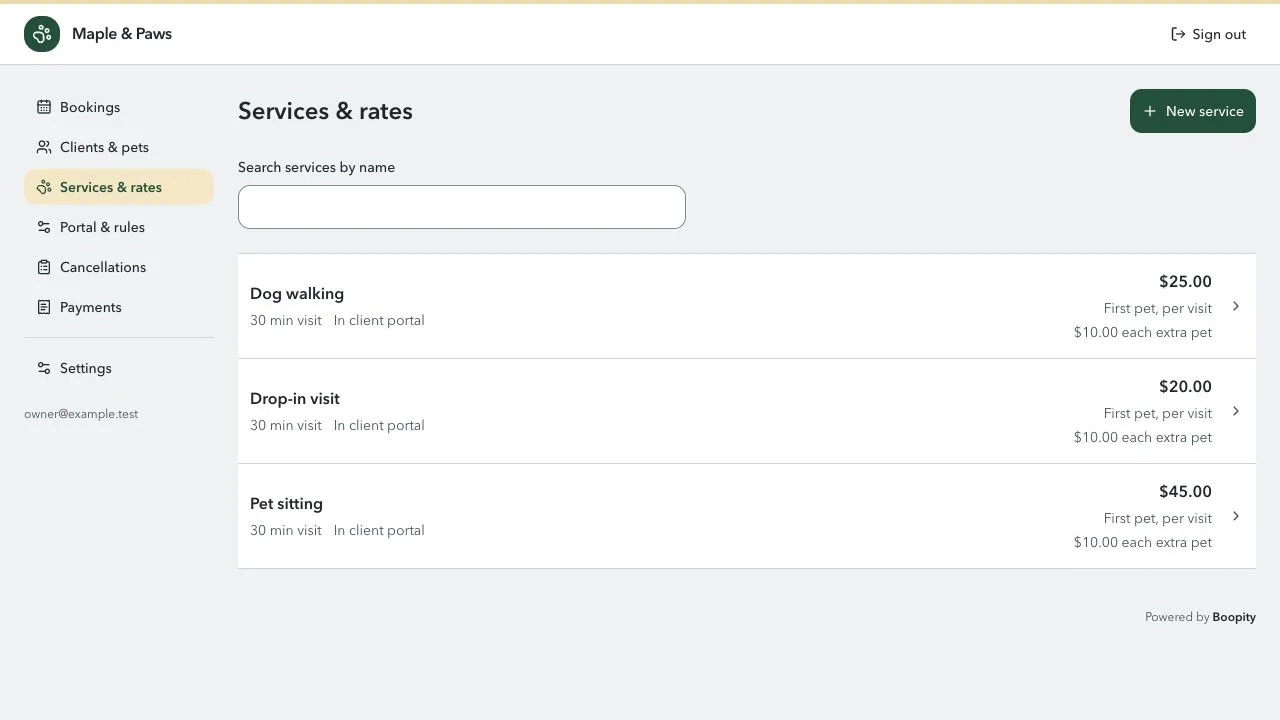
1. Add a service
Section titled “1. Add a service”In Services & rates → New service, enter Dog walking, 30 minutes, and $25. Check the price preview and save.
New services are available to you but hidden from clients until you offer them in the portal.
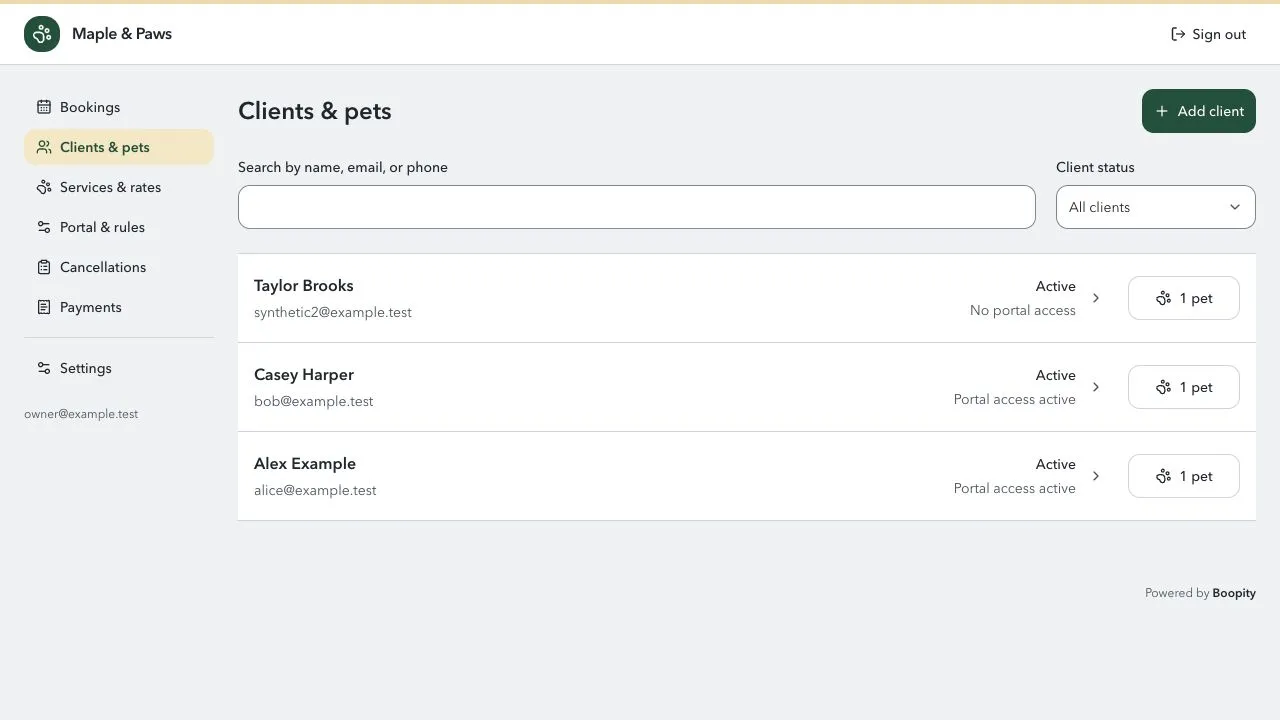
2. Add your client and their pet
Section titled “2. Add your client and their pet”In Clients & pets, add Alex’s name and email. Open their Pets tab to add Scout and any care notes. You can invite Alex to sign in later.
3. Set your booking hours
Section titled “3. Set your booking hours”In Portal & rules, save your usual hours. These determine available times for both you and your clients.
For exceptions, you can select Book outside opening hours or Waive minimum booking notice when booking. Clients cannot use these options, and overlapping bookings are still blocked.
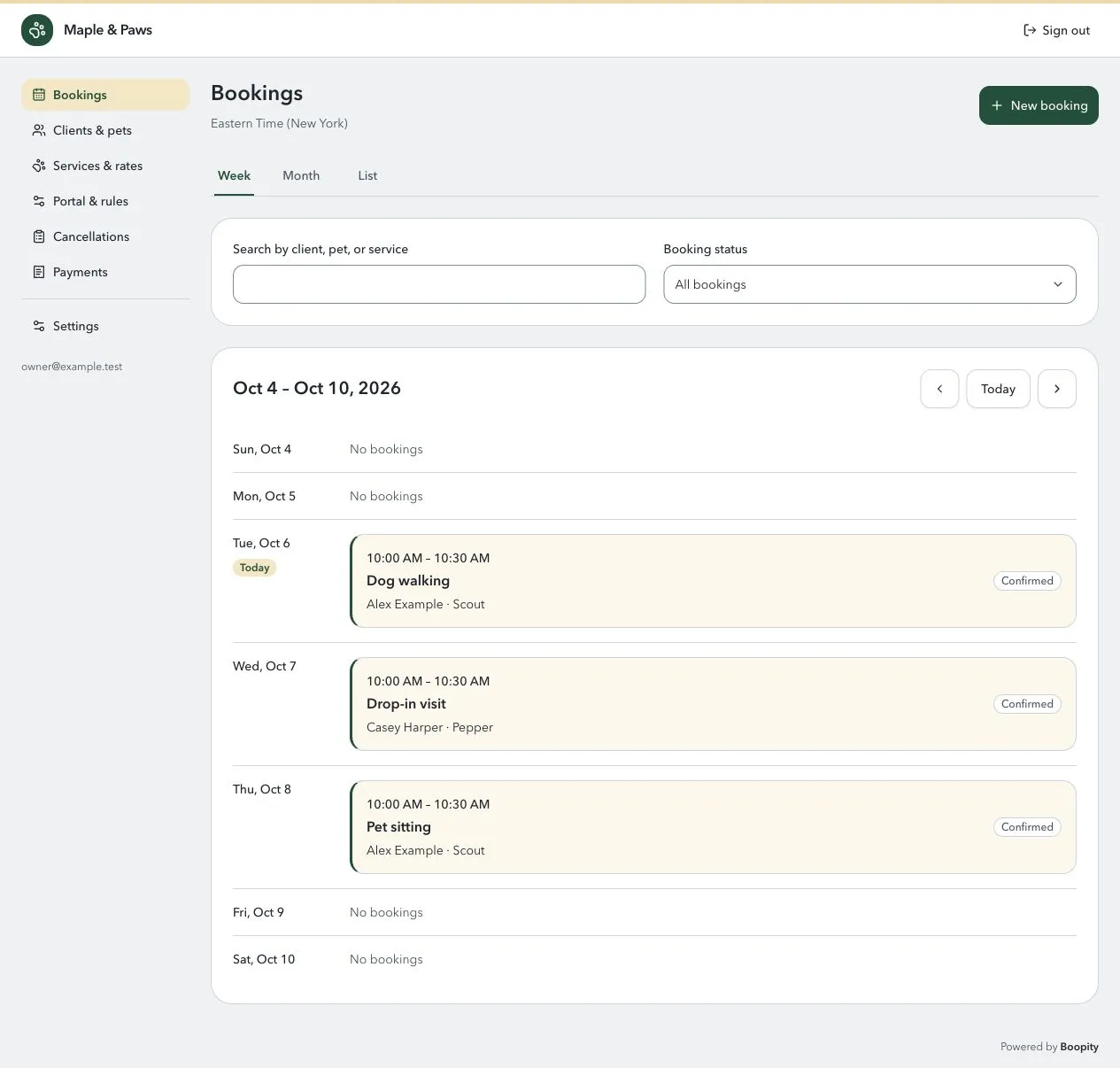
4. Create the booking
Section titled “4. Create the booking”Select Bookings → New booking. Choose Alex, Scout, Dog walking, a date, and a time. Review the total and save.
5. Record a payment
Section titled “5. Record a payment”In the booking’s Payments tab, record $25 in cash. This logs money received; it does not charge the client.
The main Payments page lists payments across all bookings.
Next: Invite your client.