Business & account settings
Use Settings after the setup wizard is finished. You don’t need to run setup again to change your business details.
Change your name, logo, or colors
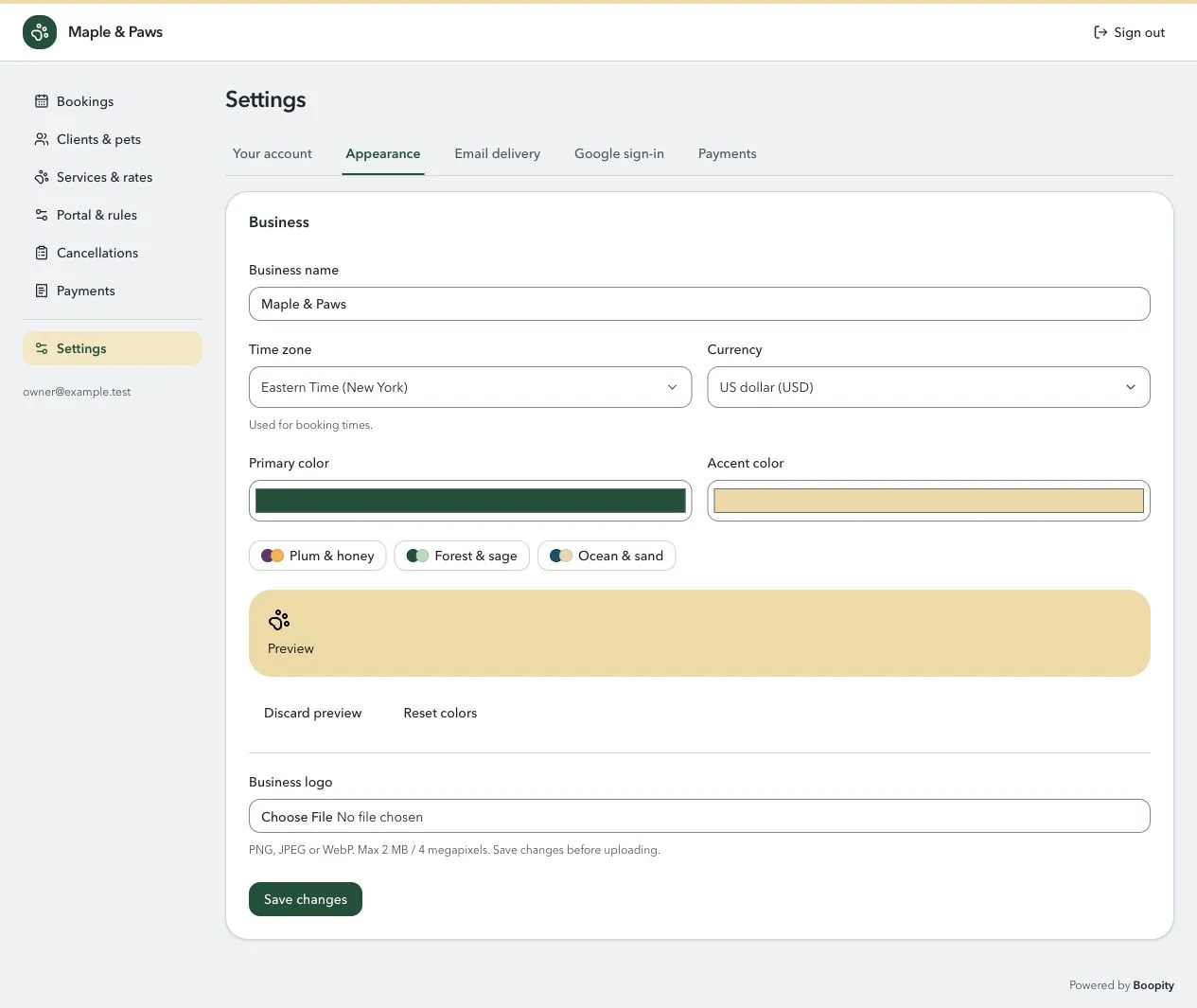
Section titled “Change your name, logo, or colors”Open Settings → Appearance. Enter the business name you want clients to see and choose a color preset or your own primary and accent colors. Select Save changes.
To add a logo, save any other edits first, then choose an image under Business logo. In Settings, the upload saves immediately.
Logos can be PNG, JPEG, or WebP, up to 2 MB and about four million pixels. SVG files aren’t accepted. A square image usually fits the header best.
The Powered by Boopity credit stays in the footer.
Set the time zone and currency
Section titled “Set the time zone and currency”Choose the time zone where you work, not where the server is hosted. Check it before setting booking hours.
The currency choices are US dollars, Canadian dollars, British pounds, euros, Australian dollars, and New Zealand dollars. Changing currency does not convert your prices. Review service rates before creating more bookings.
Existing bookings keep their saved time zone and currency. A settings change doesn’t rewrite their amounts or scheduled times.
Change your sign-in email
Section titled “Change your sign-in email”You need access to both your current and replacement inbox:
- Open Settings → Your account.
- Enter New email and select Send verification codes.
- Enter the different six-digit code sent to each inbox.
- Select Confirm email change.
Both codes expire after five minutes. Resend both codes replaces them together; use the newest message in each inbox. Your current address stays active until you complete the change.
You’ll be signed out on all devices. Sign back in with the new email. Your business records stay intact, but the old Google account connection is removed. To use Google again, choose the account matching the new email.
If you no longer have access to the old inbox, your installer can recover the owner account.
Connect email, Google, or payments
Section titled “Connect email, Google, or payments”- Email delivery sends sign-in codes.
- Google sign-in adds an optional sign-in method.
- Stripe lets clients pay online.
These connections belong to your business. Boopity doesn’t supply provider accounts or pay their fees.