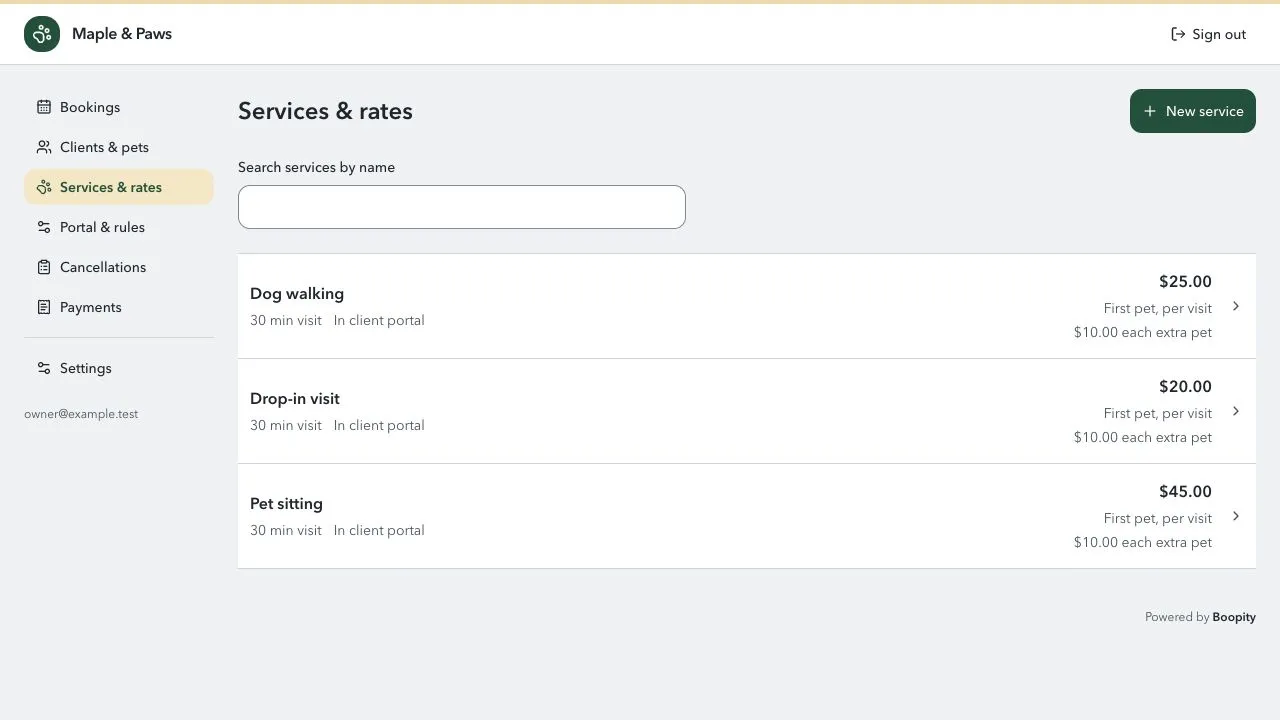
Services & rates
Each service defines the type of care, its length, and its price. Start with the services you actually offer; you can add more later.
Add a service
Section titled “Add a service”- Open Services & rates → New service.
- Enter a name clients will recognize, such as Dog walking or Overnight pet sitting.
- Set the visit length, or choose All-day / multi-day care for a service charged by the day.
- Enter the price and any additional-pet price. Check the one-pet and two-pet previews.
- Select Save service.
Price a booking with more than one pet
Section titled “Price a booking with more than one pet”For a $25 visit with a $10 additional-pet price:
| Pets | Visit total |
|---|---|
| One | $25 |
| Two | $35 |
| Three | $45 |
Leaving the additional-pet price at 0 means each pet is charged the full base price. It does not mean extra pets are free. In that example, two pets would cost $50. Check the preview before saving.
For all-day care, the first and last dates both count. Monday through Wednesday is three days, so a $40 daily rate for one pet totals $120.
Let clients book the service
Section titled “Let clients book the service”New services are hidden from the client portal. You can still use them when creating bookings yourself.
Open the saved service and select Offer in the client portal. This change saves immediately. Clients also need portal access, and you need booking hours that make the service available.
Clear the option to hide a service from clients without removing it from your own booking form.
Change a rate or retire a service
Section titled “Change a rate or retire a service”Open the service, edit its details, and select Save service. Existing bookings keep their saved price; the new rate applies to new bookings.
Choose Archive service when you no longer offer it. It disappears from new-booking choices, but old bookings remain. If you reactivate it later, check whether it is offered in the portal before inviting clients to use it.