Payments & refunds
You can record payments yourself without connecting a payment provider. To let clients pay online, follow the Stripe setup walkthrough to connect your account, make a practice payment, and switch on real payments.
Record money you’ve received
Section titled “Record money you’ve received”- Open the booking’s Payments tab and choose Record payment.
- Enter the Received amount and choose the Manual payment method.
- Select Record payment, then check the remaining balance.
For a $25 visit where the client has handed you $10, record $10—not the full charge. The balance will show what is still due.
Cash, check, bank transfer, Venmo, Zelle, PayPal, and similar choices are labels for money received elsewhere. Selecting one does not charge the client or connect that service.
If the client may already have paid online, refresh or reconcile that payment before adding a manual record. An open checkout can reserve part of the balance while its result is still unknown.
See payments across all bookings
Section titled “See payments across all bookings”Open Payments from the main menu. Search by client or service, and use the date, method, and status filters to narrow the list. Open a record to return to its booking.
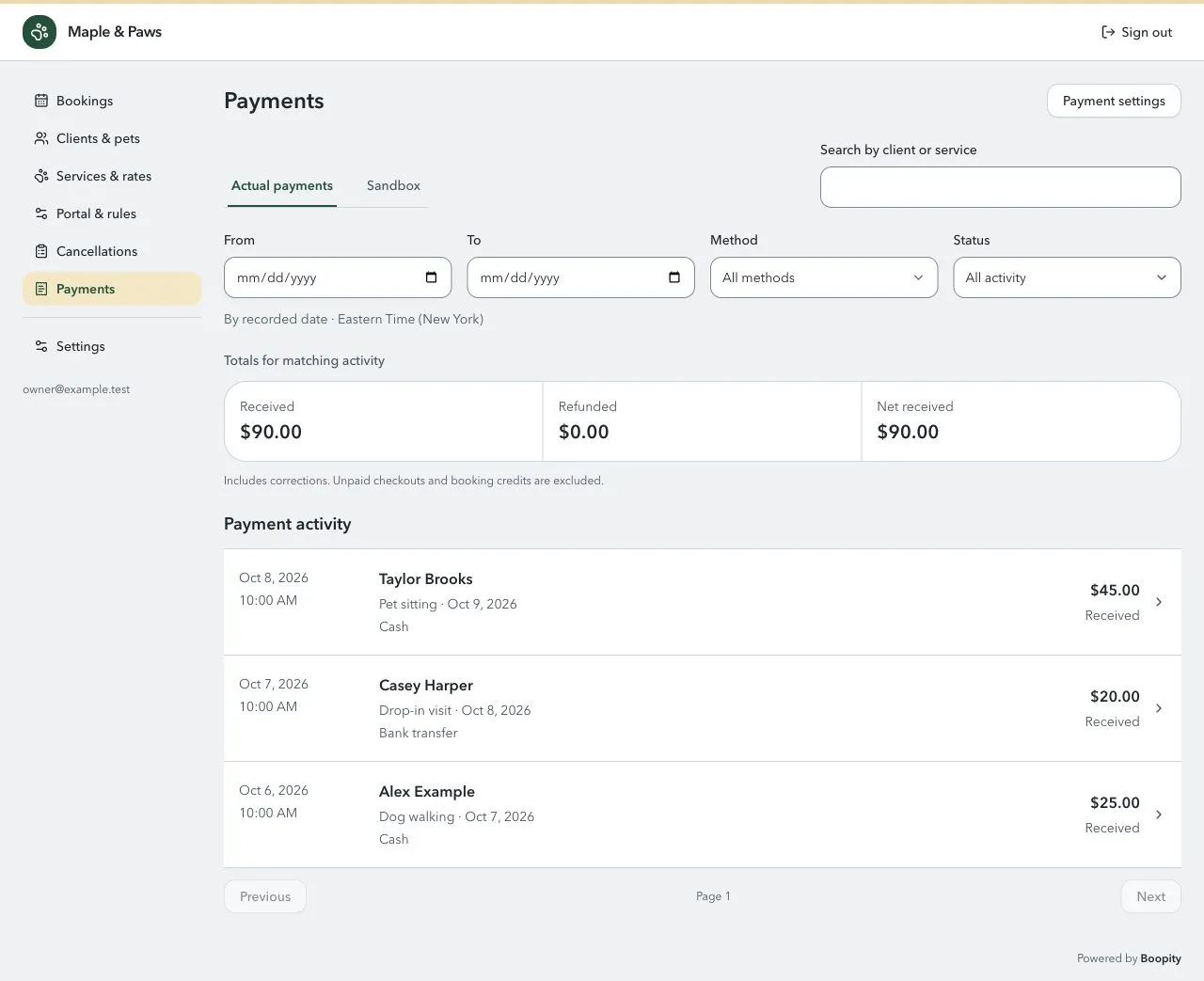
Actual payments and sandbox records are separate. Totals use the current filters, keep currencies separate, and exclude unpaid checkouts and booking credits from money received.
Take a Stripe payment
Section titled “Take a Stripe payment”After you’ve enabled live checkout, a client opens a confirmed or completed booking and pays its outstanding balance through Stripe. Card details are entered on Stripe’s checkout page, not in Boopity.
A cancelled or expired checkout is not a payment. If the status is still processing, wait for the provider’s result. Use Refresh payments or Check payment status when checking an uncertain result; don’t ask the client to pay twice.
Refunds, credits, and corrections
Section titled “Refunds, credits, and corrections”These actions do different jobs:
| What happened | What to use |
|---|---|
| You returned cash or money through another app | Record a returned refund |
| You want to return a Stripe payment | Issue a Stripe refund |
| You want to reduce what the client owes | Record a booking credit |
| You entered a payment that never happened | Void the incorrect manual record |
Record a refund returned elsewhere
Section titled “Record a refund returned elsewhere”Return the money outside Boopity first. Open the payment, choose Refund or correct record, enter the amount and reason, and confirm I already returned this money outside Boopity. Select Record returned refund.
This records the return; Boopity doesn’t transfer money for a manual refund.
Refund a Stripe payment
Section titled “Refund a Stripe payment”Open the payment and choose Refund payment. Enter the amount and reason, check whether it is a sandbox or real refund, and confirm.
A live refund sends a request to Stripe to return money to the original payment method. Check the refund’s status afterward: pending is not refunded. If an outcome is uncertain, reconcile it or use the existing refund’s retry control rather than starting another refund.
Reduce a booking’s charge
Section titled “Reduce a booking’s charge”In the booking’s Payments tab, choose Adjust charge. Enter the Amount to credit and a private reason, then select Record booking credit. Check the selected actual/sandbox balance if the form offers that choice.
A credit reduces the charge; it does not return money already paid. To undo a mistake, open that credit’s correction control and select Reverse credit and restore charge with a reason.
Correct a manual payment mistake
Section titled “Correct a manual payment mistake”For an incorrect manual record that has no refunds, choose Refund or correct record, enter a correction reason, and select Void incorrect record (no money moved). Then enter the correct payment if needed. The original remains in history.
After a cancellation
Section titled “After a cancellation”Cancelling a booking does not waive its charge or refund its payments. Decide whether to reduce the charge, return money, or keep the cancellation charge under your policy, then record those actions separately.